
Plugins
Every plugin your projects use, most used first, with its format, whether it is on this Mac, and a link to its maker's downloads.
Plugins is every plugin and Live device your projects use. Press ⌘2 to go there.
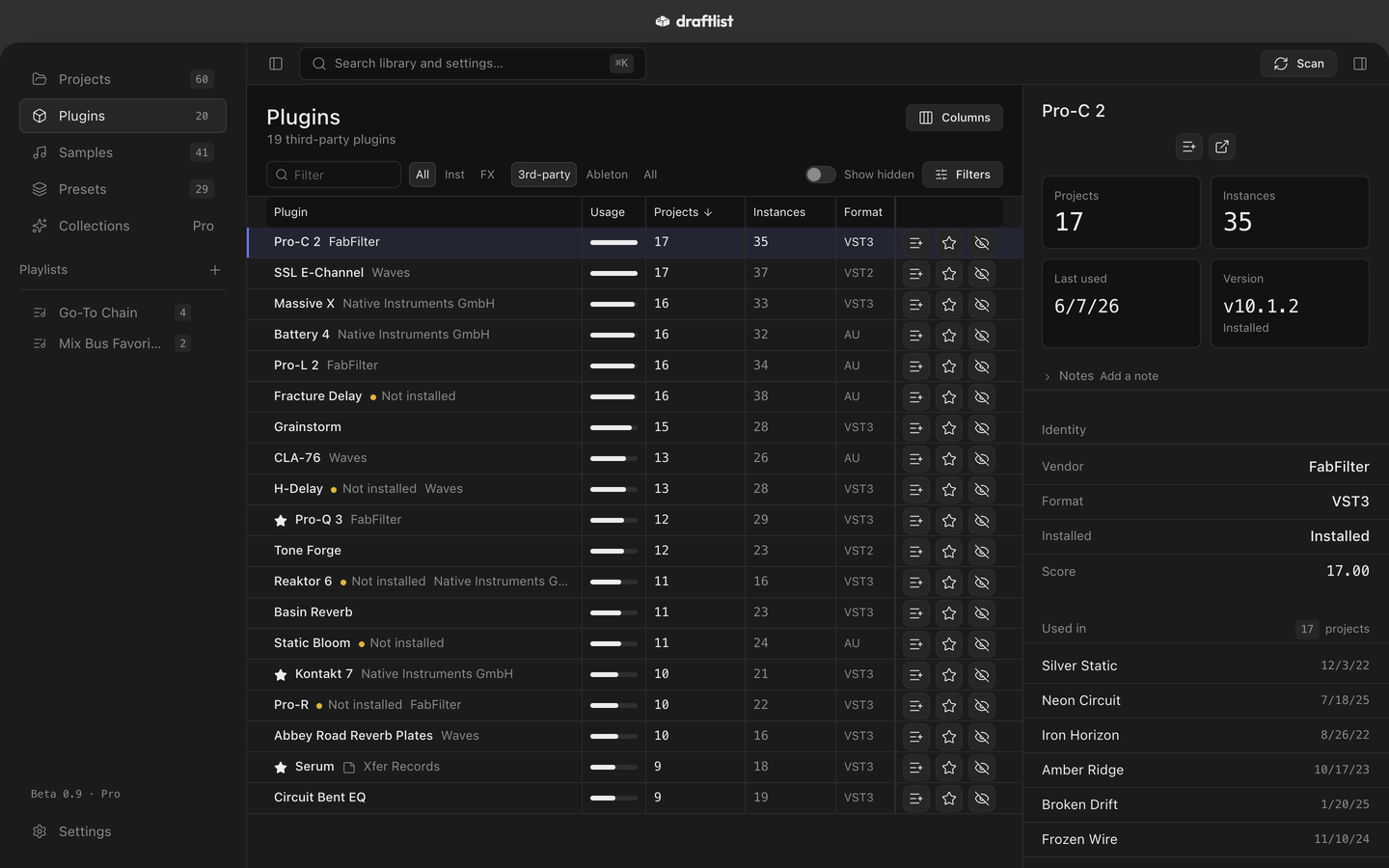
Ranked by use
The plugin used in the most projects comes first. Recent and finished projects count more, as for samples. Each row shows Usage, Projects, Instances (how many times it appears) and Format.
Formats
- VST2, VST3 and AU for third-party plugins.
- ABL for Live's own devices.
Filter the list
- Kind: All, Instruments or Effects.
- Source: Third-party (shown at first), Ableton devices, or All.
- Format: any one format.
- Installed: only the plugins on this Mac, or only the missing ones.
- Show hidden brings back plugins you hid.
On this Mac, or missing
Draftlist checks your plugin folders to see what is installed. A plugin your projects use that isn't on this Mac reads Not installed. That is the one to reinstall before you open those sets.
Draftlist reads the Mac's standard plugin folders by itself. Add your own in Settings ▸ Folders ▸ Plugin folders. See Settings.
Vendor pages
The Vendor page button in a plugin's inspector, also in its right-click menu, helps you get or update it:
- If the maker's installer app is on your Mac, such as Native Access or Waves Central, Draftlist opens it.
- Otherwise it opens the maker's downloads page in your browser.
- If Draftlist doesn't know the maker, the button is greyed.
The inspector
Click a plugin to see its projects, instances, when it was last used and its version, your Notes, its vendor and format, and Used in: every project it is in.
Last updated
Something wrong or missing on this page? Tell us.