
Projects
Every Ableton set on your Mac in one list, with its tempo, key and Live version, your notes, Live's backups, and one click to open it in Live.
Projects is every Ableton Live set Draftlist found in your folders, in one list. Press ⌘1 to go there.
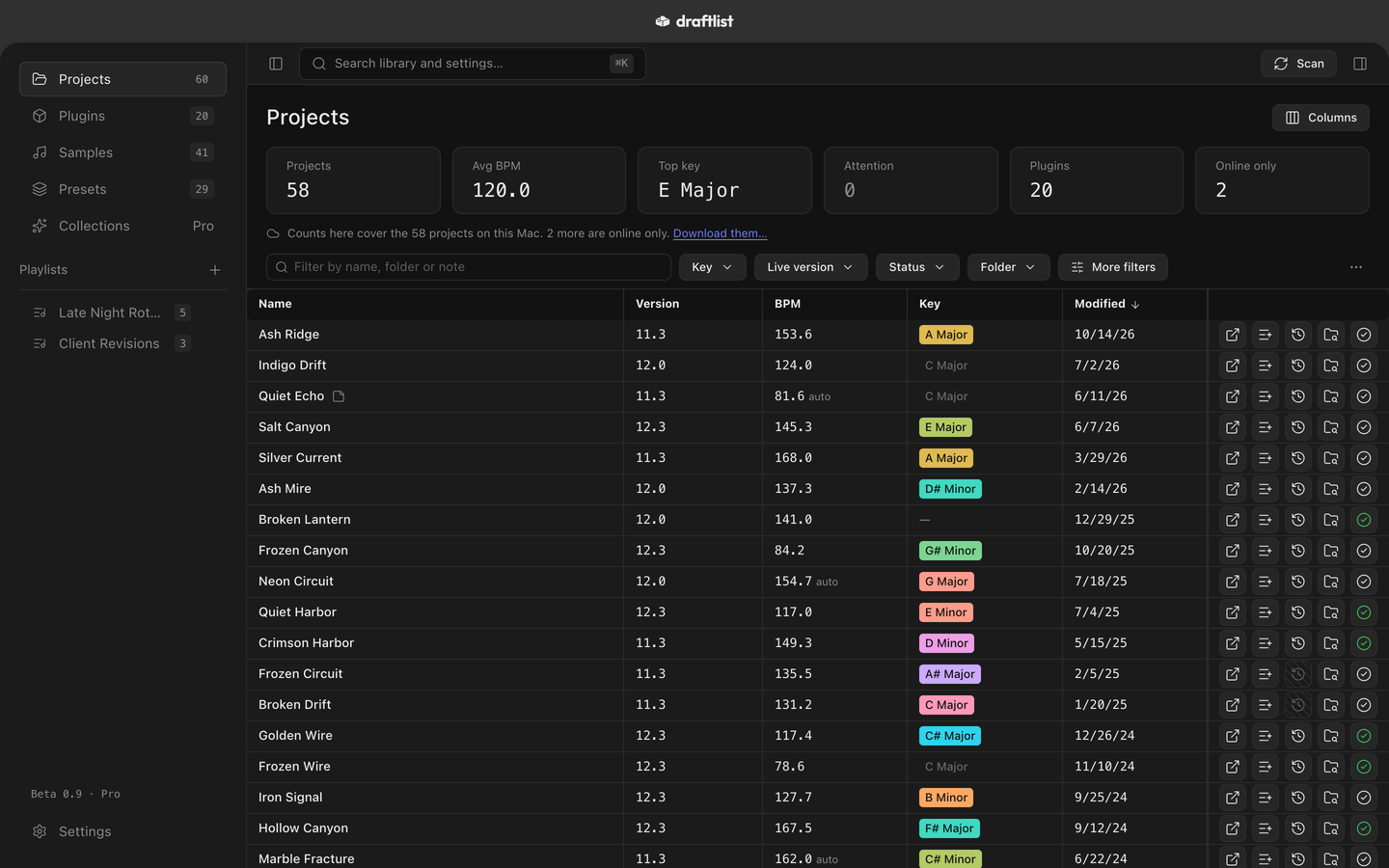
The list
Each row is one set. At first the list shows its Version (the Live version it was saved in), BPM, Key and Modified date, newest first. Click any column header to sort by it.
- Columns adds or removes columns: time signature, tracks, plugins, samples and missing samples. Reset columns to defaults puts them back.
- Drag a column to move it. Drag its edge to resize it; double-click the edge to reset it.
- The strip above the list counts your projects, their average BPM and top key, your plugins, and the sets that need attention or are online only.
Filter the list
- Type in Filter by name, folder or note to narrow the list. It searches your notes too.
- Narrow it by Key, Live version, Status or Folder.
- More filters has a BPM range and Missing samples only.
- Clear removes every filter.
The inspector
Click a set to see its details in the inspector on the right. Press ⌘I to show or hide it.
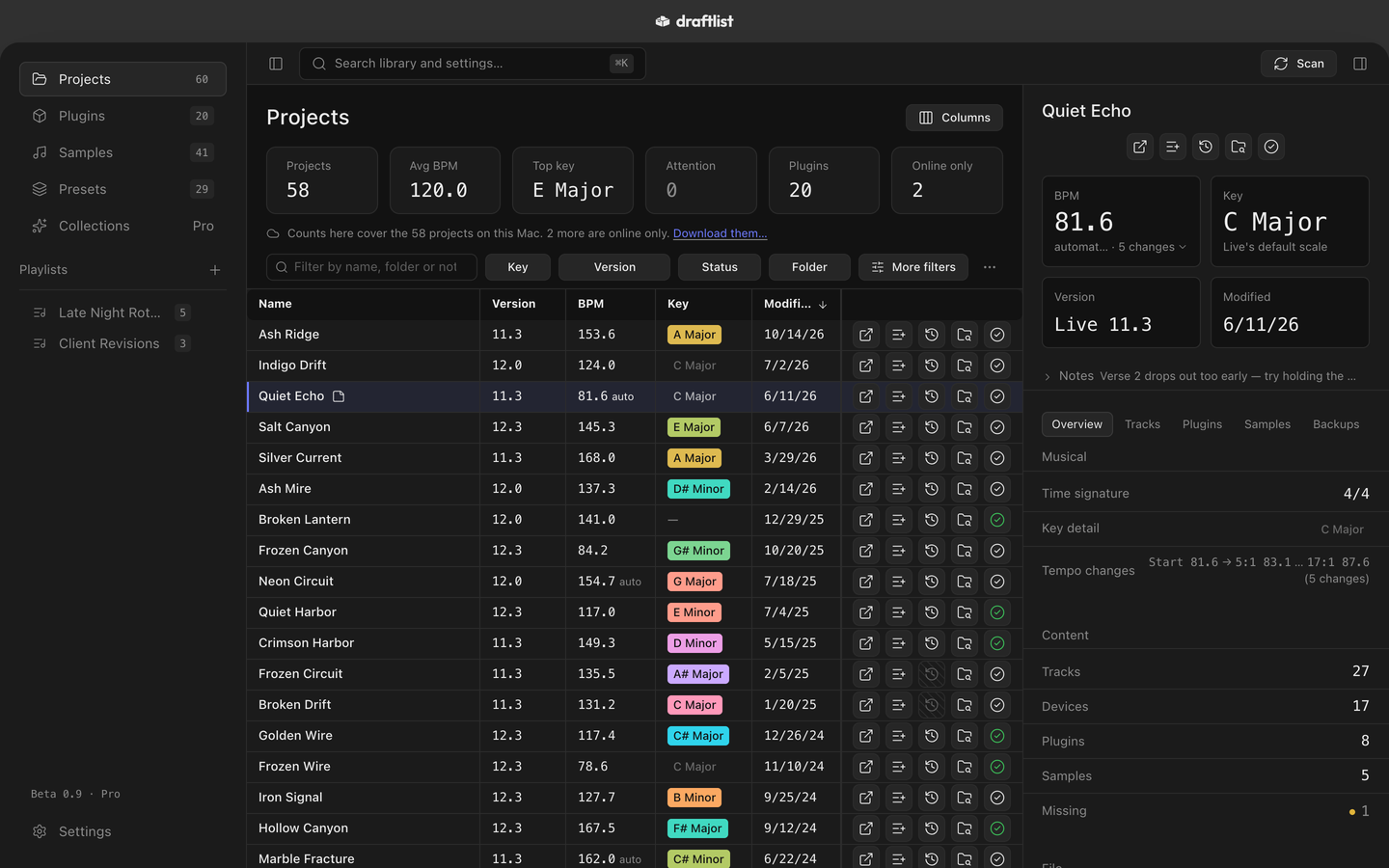
The top shows the set's BPM, Key, Version and Modified date. Under it are your Notes, then five tabs: Overview, Tracks, Plugins, Samples and Backups.
Tempo and key
Both come straight from the set. If the tempo changes during the set, the BPM column shows "auto" and the inspector lists every change.
The key shows where it came from: Set in Live, Detected from MIDI, Differs from Live and so on. Press Why? to see the reasoning. Settings ▸ General ▸ Key detection shows how confident the detection is.
Notes
Write anything about a set: mix notes, what to fix next, who it is for. Notes save as you type, and you see them on every tab. The filter box finds sets by their notes.
Versions and backups
Live keeps backups of a set in its project's Backup folder. Draftlist lists them.
- Backups on a row lists every backup, newest first, with its date and size. Click one to open that version in Live.
- The inspector's Backups tab lists every set file in the project, with a star on the main set.
Mark a set finished
Press Mark finished on a row, or right-click it. Finished sets count a little more when Draftlist ranks your samples and plugins by use. Press Unmark finished to undo it.
Open in Live
Press the first button on a row, double-click the row, or press ⌘↓. The set opens in the Live you chose in Settings ▸ General ▸ Open sets with. Otherwise Draftlist uses the newest Live in Applications.
Right-click a row for Open in Live, Add to playlist, Reveal in Finder and Copy path.
Online-only projects
Projects in iCloud Drive or Dropbox may be stored online only, not on your Mac. Draftlist lists them with a cloud mark and Online only, and reads each one once it is on your Mac.
- Press Download on the row to fetch that project.
- Download all online-only in the ··· menu fetches them all. Show only online-only lists just those.
- Draftlist asks first, and lets you pick Just the sets (small and quick, enough for everything Draftlist shows) or Whole project folders.
- Draftlist never downloads anything until you press Download.
Note Dropbox's older online-only files can't be downloaded by any app. In Finder, right-click the folder ▸ Make available offline, then press Scan.
Settings ▸ Library ▸ Online-only projects has the download options. See Settings.
Last updated
Something wrong or missing on this page? Tell us.