
Samples
Every sample your projects use, ranked by how often you use it, with preview playback, key and BPM, tags and playlists.
Samples is every sound your projects use, ranked by how often you use it. Press ⌘3 to go there. Draftlist finds your samples through your projects, so there is no sample folder to scan.
Ranked by use
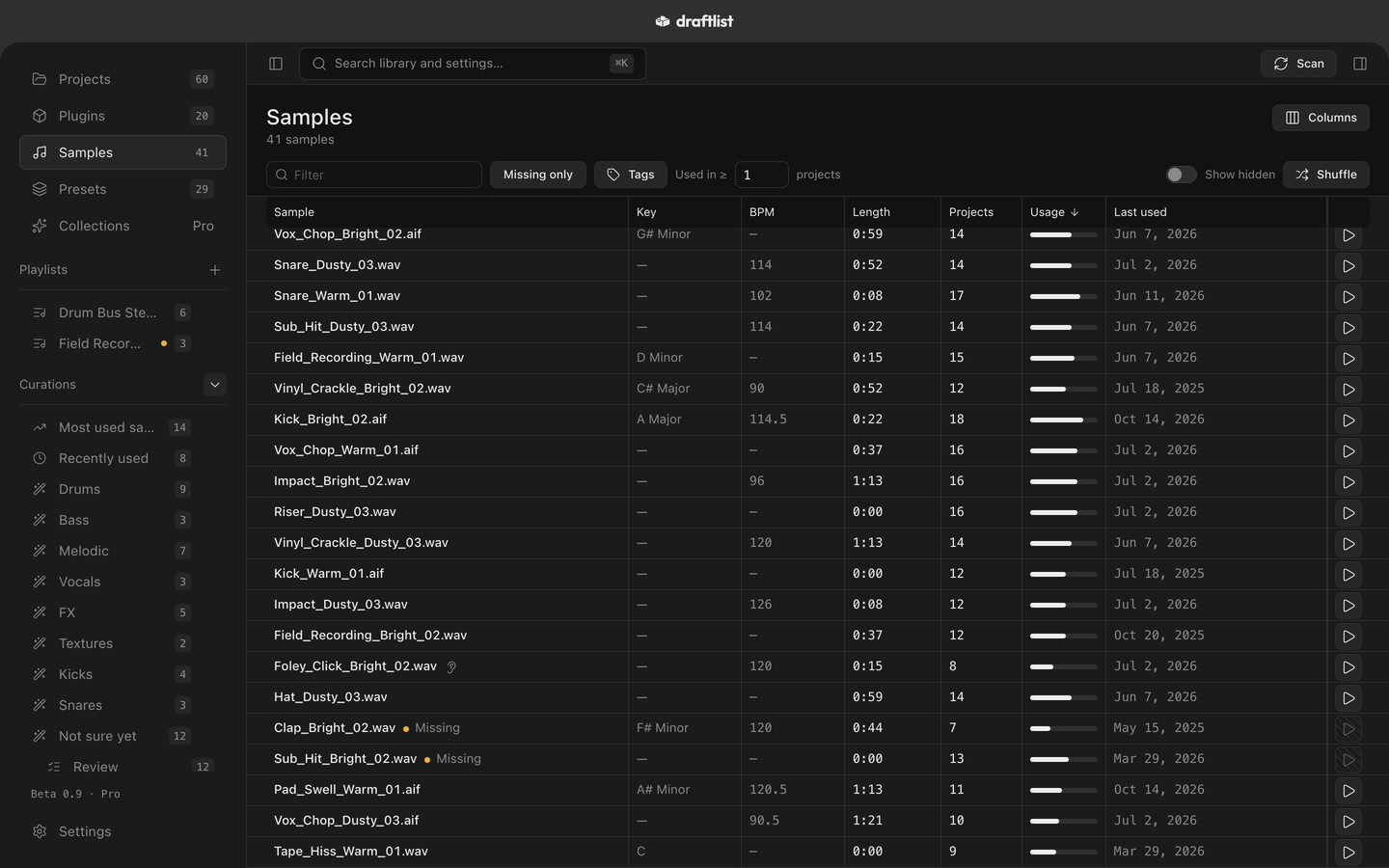
The list starts with the samples used in the most projects. A project you saved recently counts more than an old one, and a finished project counts more still. The Usage bar shows the score; ties go to the sample you used most recently.
Each row shows the sample's Key, BPM, Length, the Projects and Clips that use it, and when it was Last used. Click any header to sort by it.
- Star a sample to keep it at the top. Hide one to take it out of the list and the ranking; Show hidden brings hidden ones back.
- Missing only lists samples your projects use that aren't on disk any more.
- Used in ≥ keeps samples used in at least that many projects.
- Shuffle mixes the list for a fresh look. Re-roll shuffles again.
Preview playback
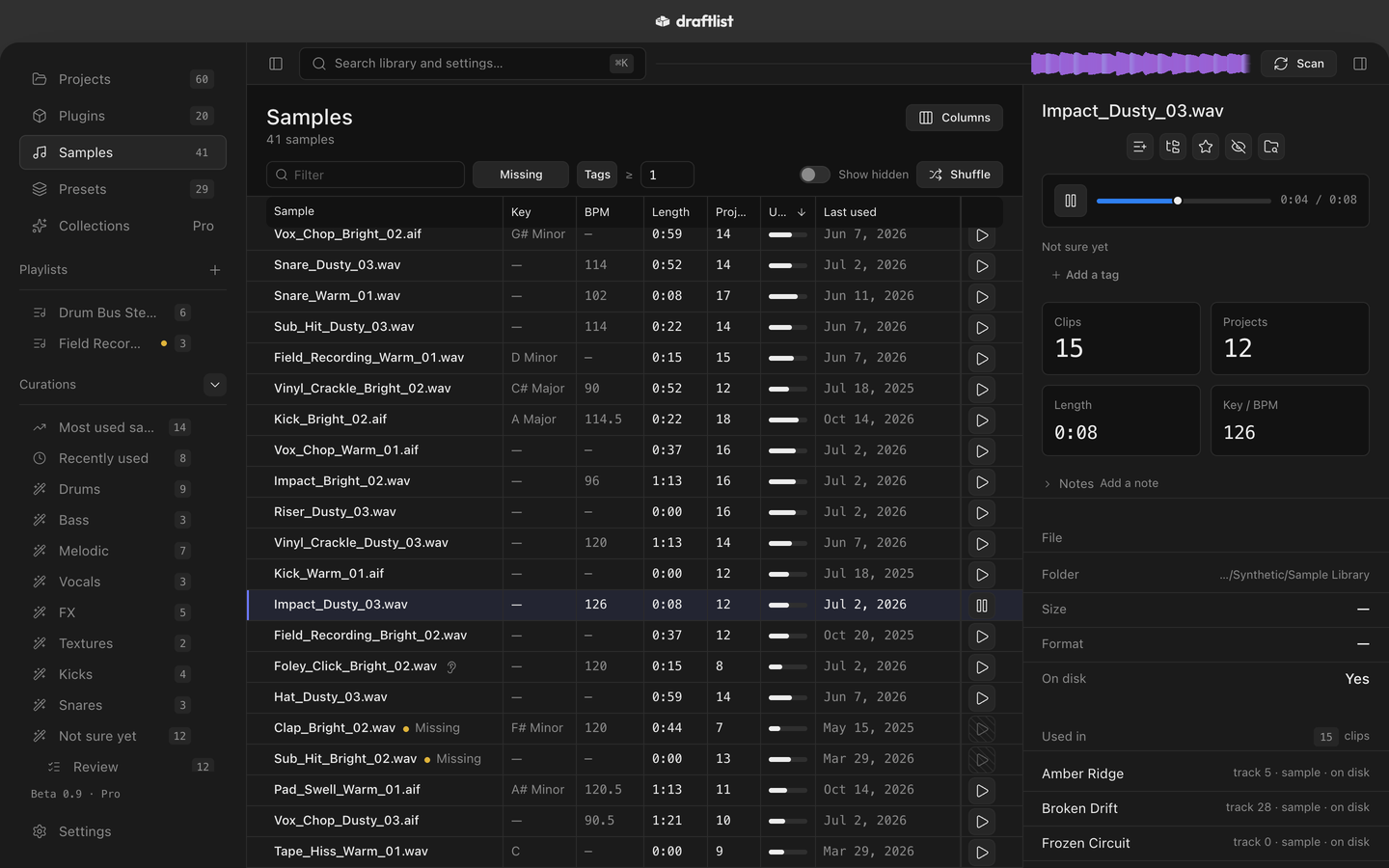
- Press the play button on a row, press Space, or double-click the row.
- With Auto-play samples when browsing with the arrow keys on, moving through the list with ↑ and ↓ plays each sample, like Ableton's browser. Turn it off in Settings ▸ General ▸ Sample preview.
Draftlist plays WAV, AIFF, MP3, M4A, AAC, FLAC and CAF files.
The visualiser
The strip in the top bar moves with whatever Draftlist is playing: lows, mids and highs in their own colours. With Reduce motion on in macOS, it shows five level dots instead.
Samples in iCloud Drive
A sample stored online only reads Not downloaded — press play to get it. Press play and Draftlist downloads it, then plays it. Press the turning ring to cancel. Browsing with the arrow keys never downloads anything.
Dropbox's older online-only files can't be downloaded by any app. Make them available offline in Finder. If a sample won't play, see Troubleshooting.
The inspector
Click a sample to see where it is used. The inspector shows its clips, projects, length, key and BPM, your Notes, the file's folder, and Used in: every project that uses it.
Hover the key or BPM to see where it came from: the file name, a project it is used in, or, with Pro's audio analysis, the sound itself. A kick with no key, or a one-shot with no tempo, is normal.
Tags
Add your own tags to any sample, then filter by them with Tags (match All or Any). Rename or delete a tag everywhere from its ··· menu.
Draftlist adds its own tags too, shown with a dashed edge. Filtering by Draftlist's own tags is part of Pro Pro.
Playlists
Make a playlist with + in the sidebar's Playlists group, then use Add to playlist on any row. Playlists work for projects, plugins and samples.
A sample playlist is also a folder. Draftlist copies the sounds into a folder for that playlist, in your Music folder, so you can drag it into Live's browser. Your original files stay exactly where they are. Deleting a playlist can delete Draftlist's copies; it never touches your originals.
Last updated
Something wrong or missing on this page? Tell us.