
Playlists
Your own lists of projects, plugins, samples and presets, one group per tab in the sidebar, and how they sit beside Draftlist's Curations.
A playlist is a list you make from your library: the sets for one client, the plugins a song needs, the sounds for a kit. Each tab has its own playlists, in the sidebar's Playlists group under the tabs, and a playlist holds one kind of thing: a Projects playlist holds projects, a Samples playlist holds samples.
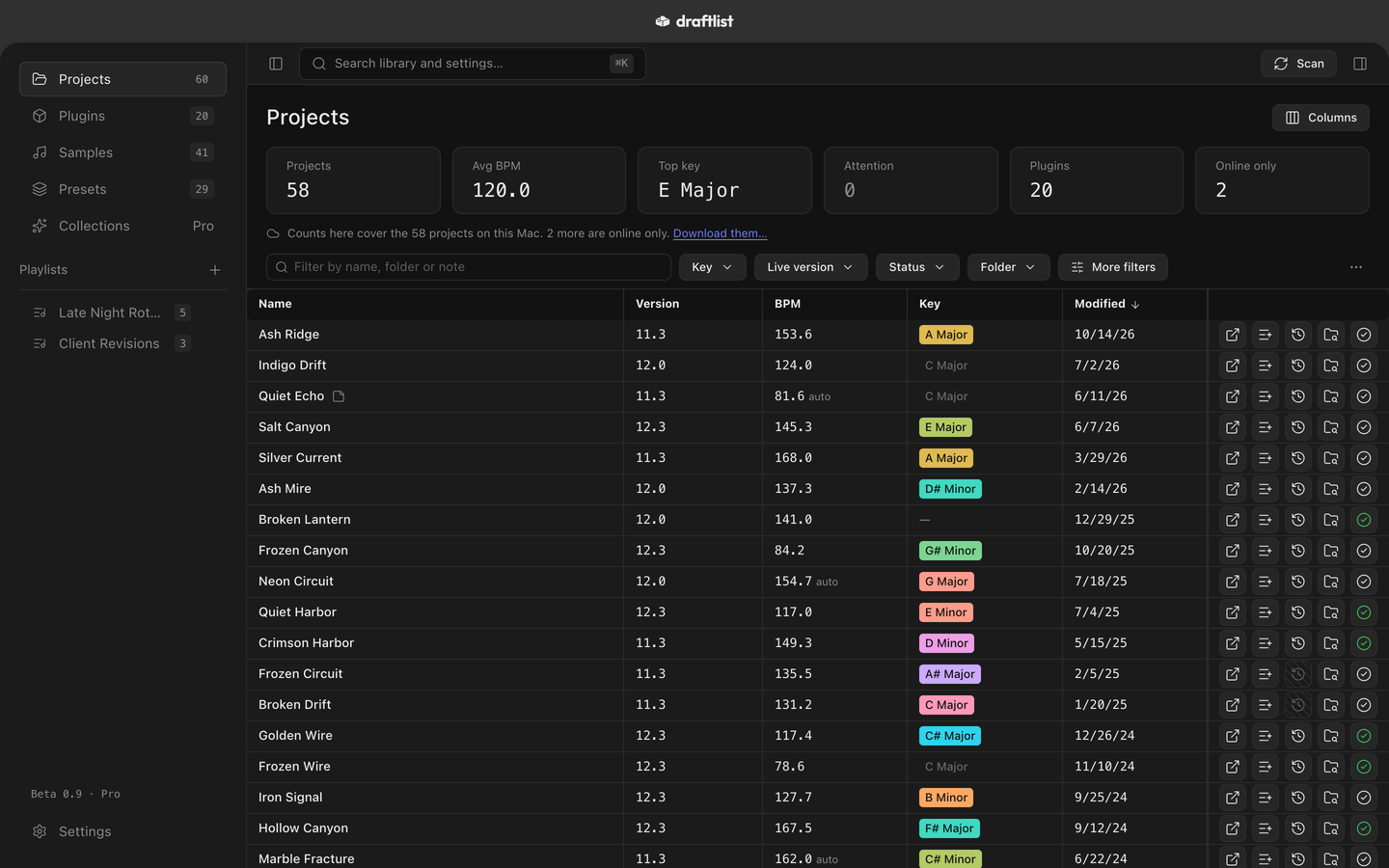
Your playlists and Curations
The sidebar shows two kinds of list. Playlists are yours. On the Samples tab, a second group under them, Curations, holds the lists Draftlist makes for you.
| What differs | Your playlists | Curations |
|---|---|---|
| Who fills it | You | Draftlist, after every scan |
| Which tabs | Projects, Plugins, Samples, Presets Pro | Samples |
| Take something out | Remove from this playlist | Not this one |
| Rename | Yes | Yes |
| Copy files, Reveal in Finder | Sample playlists | Yes |
| Delete | Yes | No |
The Curations are:
- Most used samples and Recently used, with every license.
- With Pro, your samples sorted by sound: Drums, Bass, Melodic, Vocals, FX and Textures, lists for one kind of sound such as Kicks, and Not sure yet Pro. Without Pro, these rows show a lock and their count. Draftlist keeps filling them either way.
Curations has how each one is chosen and how to correct it.
Make a playlist
- Go to the tab the playlist is for: Projects, Plugins, Samples or Presets.
- Press + beside Playlists in the sidebar.
- Type a name and press Create.
You can also make one while adding: the Add to playlist button's New playlist… makes it with that item already in it.
The sidebar lists your playlists A to Z, each with how many items it holds. Click one to open it.
Add and remove
Every row and every inspector has Add to playlist:
- The row's button (the list icon with a plus) and the inspector's Add to playlist open a menu of the tab's playlists. A tick shows the ones the item is already in. Click a ticked playlist to take the item out again.
- Right-click a row ▸ Add to playlist lists your playlists. Pick one to add the row. ⇧F10 opens the same menu from the keyboard.
An item can be in as many playlists as you like. Adding is by menu: there is no dragging into a playlist.
To take an item out, open the playlist and press Remove from this playlist on its row, or select the row and press the same button at the top of the page.
Inside a playlist
A playlist opens as its tab's own list, with only its items in it: the same columns, filters, row buttons, right-click menu and inspector. Click a column header to sort it. The items follow the sort you choose; there is no hand order.
- The header shows the name and the count: "12 items", or for a sample playlist "9 sounds", with "1 needs attention" when a copy needs a look (below).
- Filters are the playlist's own. Narrowing a playlist leaves the tab's list as it was, and the other way round.
- An empty playlist says Nothing in here yet. Fill it with Add to playlist on any row.
- Gone from your library. If an item is no longer in your library, the page says how many, with Remove them.
Rename and delete
Hover a playlist in the sidebar and press its ··· button:
- Rename… renames it. A sample playlist's folder is renamed to match.
- Reveal in Finder (sample playlists) opens its folder.
- Delete… removes the playlist from Draftlist. For a sample playlist, Also delete the folder and the files Draftlist copied into it is ticked at first. Your original files are never touched, and a copy you changed since Draftlist made it is left alone.
In each tab
Projects
A project playlist keeps sets together: an album, a client, the ideas worth finishing. Inside it, everything the Projects tab does works the same: open a set in Live, Backups, Mark finished, notes, the inspector.
The strip of figures at the top (projects, average BPM, top key and the rest) counts only the playlist's own sets.
Hidden projects. Hiding a project doesn't take it out of a playlist. While Settings ▸ Library ▸ Show hidden projects is off, a hidden project leaves the playlist's list and its figures, but still counts in the playlist's number in the sidebar and header, since it is still a member. Turn the switch on to see it again, tagged Hidden; Unhide in its right-click menu brings it back for good. See Projects.
Samples
A sample playlist is also a folder, so you can use its sounds in Live.
- Add your sounds. Each one reads Waiting in the playlist's Copy status column.
- Press Copy files. Draftlist copies the sounds into the playlist's folder, inside the Playlists folder in your Music folder (
~/Music/Draftlist/Playlists). Each one now reads Copied. - Once, press the ? button beside Reveal in Finder, then Reveal Playlists folder, and drag that folder into Places in Live's browser. Every playlist you make from then on shows up inside it.
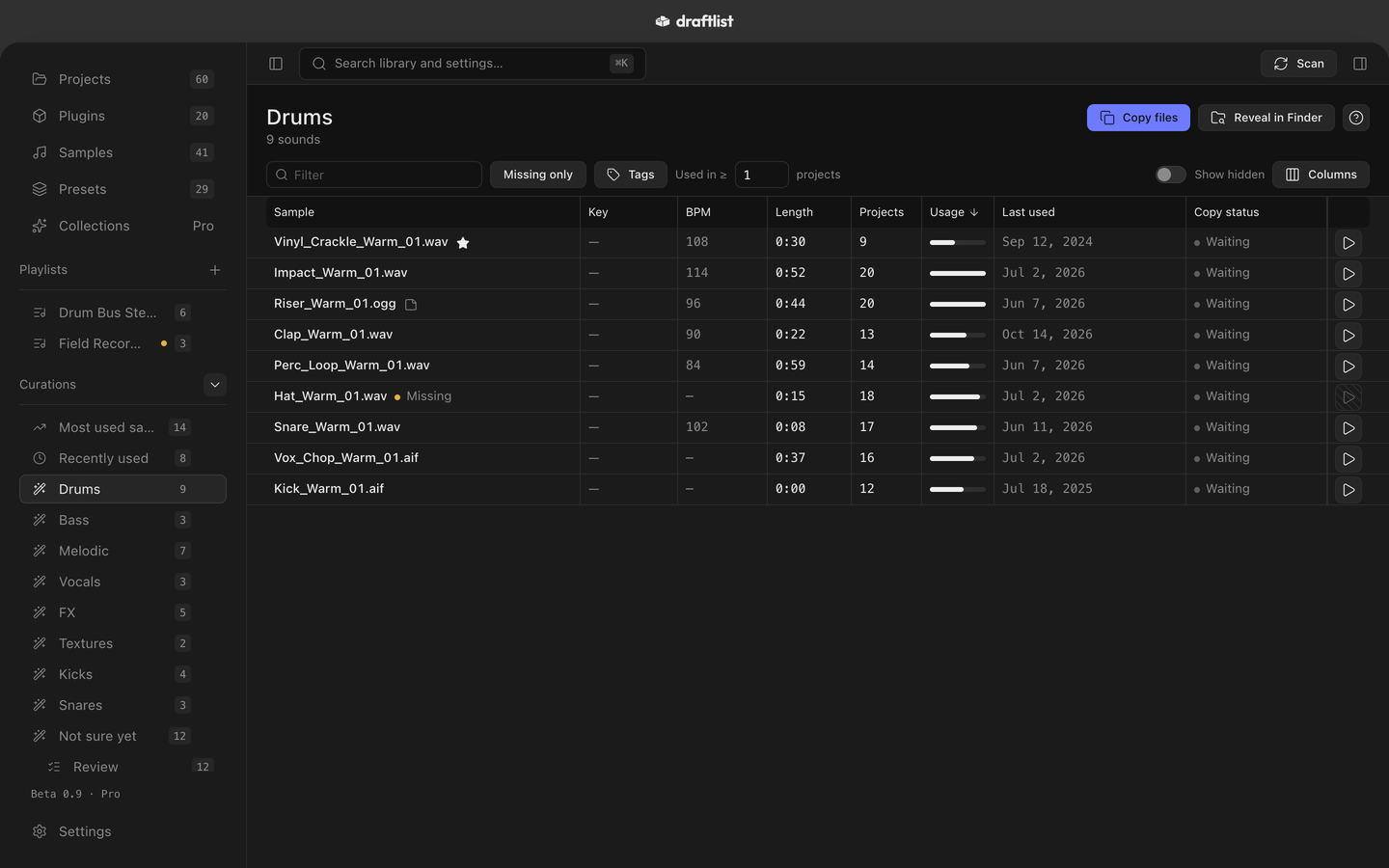
Press Copy files again after adding sounds: Live picks up the new ones. The button shows while a sound is waiting or needs another try.
| Copy status | What it means |
|---|---|
| Copied | Draftlist's copy is in the playlist's folder. |
| Waiting | Press Copy files to put the sound in the folder. |
| Original missing | Draftlist can't find the original file. It may have moved, or be on a drive that isn't plugged in. |
| Copy failed | The copy could not be written. Press Copy files to try again. |
| Copy changed | The file in the folder isn't the one Draftlist made, so Draftlist left it alone. |
A sound that needs a look puts a small dot on the playlist's row in the sidebar.
Removing a sound from a sample playlist deletes Draftlist's copy. Your original file stays exactly where it is.
Curations have Copy files too, in their ··· menu. Their copies go in a Curations folder inside the Playlists folder. When a refresh drops sounds you had copied, the Curation says so, with Delete for those files.
Shuffle is part of the Samples tab itself, not of a playlist.
Plugins
A plugin playlist gathers the plugins for a job, such as everything one song needs. Inside it, Installed shows which are on this Mac, and Vendor page in a plugin's inspector or right-click menu takes you to its maker. See Plugins.
Presets Pro
Presets is part of Draftlist Pro, and so are its playlists. They work as on the other tabs, with the Presets tab's own columns and filters. See Presets.
Collections Coming
Collections has no playlists. It is coming with Draftlist Pro. See Collections.
Find and open
- Search (⌘K) finds playlists by name, in its Playlists group. Pick one to open it. Preset playlists show up with Pro.
- With the sidebar collapsed to icons (⌥⌘S), the Playlists icon opens a menu of the tab's playlists (and, on Samples, the Curations). To make, rename or delete one, expand the sidebar.
Playlists have no keyboard shortcuts of their own. Inside one, every list shortcut works as it does on the tab.
Where playlists are kept
Your playlists are kept in Draftlist's own library on your Mac, with the rest of what it knows (Privacy and your data). Making, filling or deleting a playlist never changes your projects, samples or plugins, and nothing is written to Live.
The one thing playlists write is a sample playlist's folder of copies, and only when you press Copy files. Restore all settings to defaults in Settings ▸ Advanced leaves your playlists as they are.
Last updated
Something wrong or missing on this page? Tell us.